

The settings described on this page are located in the ComfyUI in-app settings menu. You can open it by navigating to Settings (gear icon) or using the
Ctrl + , keyboard shortcut, then select the corresponding category to view and configure these options.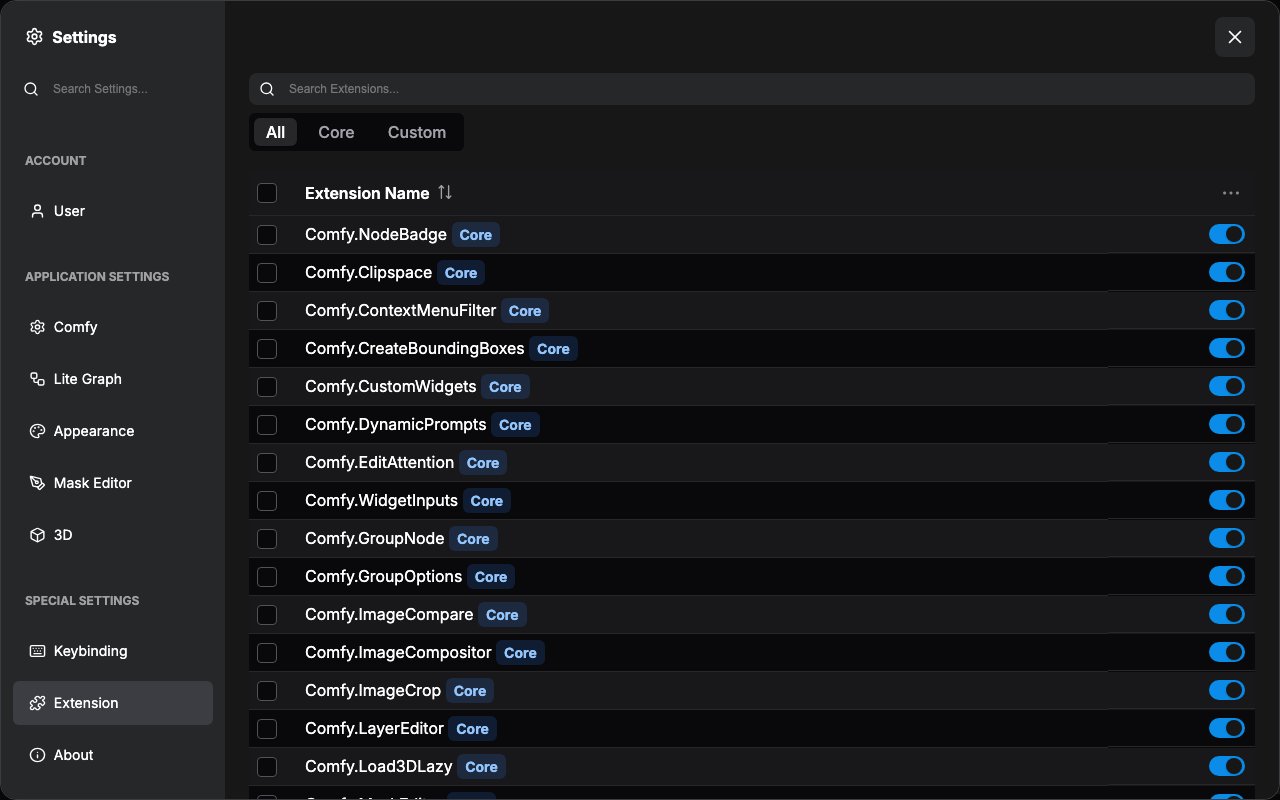
Extension Settings Panel Features
1. Extension List Management
Displays all registered extensions in a table, including:- Extension Name, with a
CoreorCustombadge - Enable/disable status, as a switch on each row
- A checkbox for selecting extensions in batch operations
2. Search Functionality
Provides a search box to quickly find specific extensions:3. Enable/Disable Control
Each extension has an independent toggle switch:4. Batch Operations
The ⋮ (More Options) button in the Extension Name column header opens a menu for batch operations:- Enable Selected, Disable Selected: apply to the extensions selected with the checkboxes
- Enable All extensions, Disable All extensions, Disable Third-Party extensions (keep core extensions): apply to every extension, selected or not
Notes
- Extension status changes require a page reload to take effect
- Some core extensions cannot be disabled
- The system will automatically disable known problematic extensions
- Extension settings are automatically saved to the user configuration file